
Meta Description:
Learn how to install IPTV on Fire Stick in minutes! Follow this complete step-by-step guide to set up IPTV apps easily and enjoy thousands of live channels, movies, and sports with UltraViewTV — your all-in-one streaming solution.
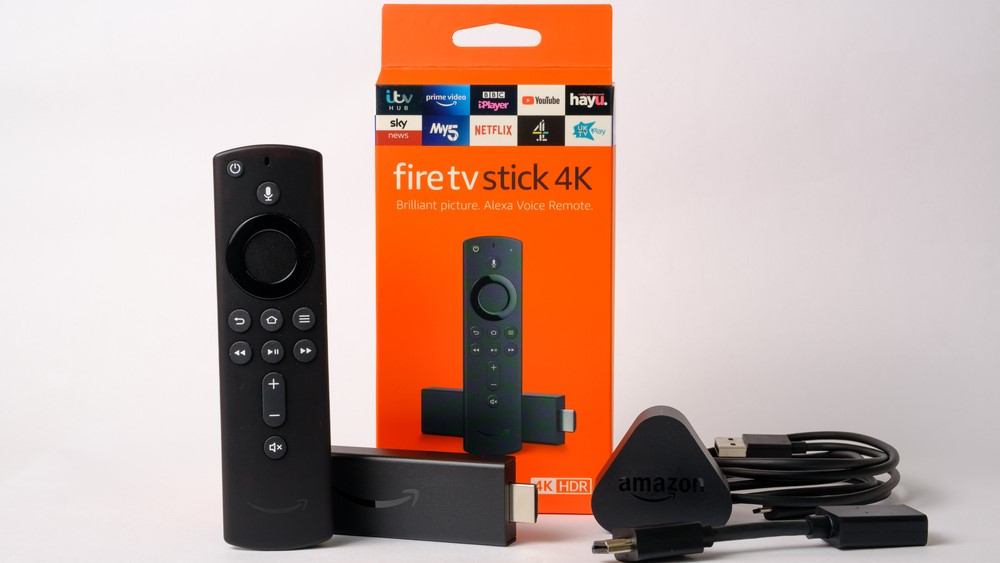
Introduction: How to Install IPTV on Fire Stick
Amazon’s Fire Stick is one of the most popular streaming devices in the world — compact, fast, and easy to use. But most users don’t realize that it can do much more than just Netflix or Amazon Prime.
By installing IPTV (Internet Protocol Television), you can unlock a world of live TV, movies, and on-demand content — all directly through your Fire Stick.
In this complete guide, we’ll show you how to install IPTV on Fire Stick step-by-step. Whether you’re new to IPTV or looking to switch to a better provider like UltraViewTV, this tutorial will help you set up your device in just a few minutes — no technical experience required.
What Is The Best IPTV and Why Use It on Fire Stick?

Before jumping into installation, let’s quickly explain what IPTV actually means.
IPTV (Internet Protocol Television) is a modern way to watch live TV and on-demand content using your internet connection — instead of traditional cable or satellite.
So instead of being limited to local TV packages, you can stream thousands of live international channels, sports events, movies, and TV shows anytime, anywhere.
And when you use a reliable IPTV provider like UltraViewTV, you get:
- 🌍 Access to 15,000+ global channels (sports, movies, news, kids & more)
- ⚡ Smooth streaming with no buffering
- 🎬 Huge library of movies & series in HD/4K
- 💰 Affordable monthly & yearly plans
- 💡 Free 24-hour trial — no credit card needed!
With IPTV on your Fire Stick, you’ll never run out of things to watch.
Step 1: Prepare Your Fire Stick for IPTV Installation
By default, Amazon restricts third-party app installations on Fire Stick. But don’t worry — it’s safe and easy to enable.
Here’s how to allow IPTV app installation:
- Go to your Fire Stick Home Screen.
- Navigate to Settings ⚙️.
- Select My Fire TV or Device & Software.
- Choose Developer Options.
- Turn Apps from Unknown Sources → ON.
- Confirm by clicking Turn On when prompted.
That’s it! You’ve now unlocked the ability to install any IPTV app manually — including UltraViewTV’s player app.
Step 2: Install the Downloader App
To download your IPTV app, you’ll need an app called Downloader — it’s free and officially available on the Amazon Appstore.
Follow these simple steps:
- On the home screen, click the Search icon 🔍.
- Type Downloader in the search bar.
- Select the Downloader App from the results.
- Click Download or Get.
- Open the app once it’s installed.
- Allow access to your files (you’ll need this to install apps).
Now you’re ready to download your IPTV app.
Step 3: Download and Install Your IPTV App
There are many IPTV players that work on Fire Stick — like IPTV Smarters Pro, TiviMate, or XCIPTV. But for the best performance and compatibility, we recommend using the UltraViewTV app.
Here’s how to install it:
- Open the Downloader app.
- In the URL bar, type the official IPTV app Code (for example):
👉481220 - Click Go.
- Wait for the file to download.
- When prompted, click Install.
- Once done, click Open to launch the app.
In less than a minute, you’ll have your IPTV player ready on your Fire Stick.
Step 4: Set Up and Log Into the IPTV App
When you open the IPTV app for the first time, you’ll need to enter your subscription credentials.
If you’re using UltraViewTV, you’ll receive:
- Username
- Password
- Server URL (Portal or Xtream Code)
You’ll find these in the email after signing up for a plan or requesting the free trial.
To log in:
- Open the IPTV app.
- Choose “Login with Xtream Codes” or “M3U URL.”
- Enter your details.
- Click Login or Connect.
Your app will now automatically load all your live channels, movies, and series.
Step 5: Enjoy UltraViewTV IPTV on Fire Stick
Once logged in, the magic begins. You can now enjoy:
- Live TV: Watch news, sports, and entertainment channels from all around the world.
- Movies & Series: Access an on-demand library with 4K films and the latest shows.
- Sports Events: Stream live football, UFC, NBA, and more — no delay, no buffering.
- Catch-Up: Replay missed programs from the past 24–48 hours.
- Favorites List: Bookmark your favorite channels for easy access later.
🎉 With UltraViewTV, everything is organized and simple to navigate — even for beginners.
Why Fire Stick + IPTV = The Perfect Match
Combining Fire Stick with IPTV gives you the ultimate home entertainment setup.
Here’s why:
- 🔥 Portable: Take your Fire Stick anywhere — hotel, travel, or another TV.
- ⚡ Fast Performance: Fire Stick’s processor handles IPTV streaming smoothly.
- 🧩 Easy Installation: You can install any IPTV app within minutes.
- 💸 Cost-Effective: Replace expensive cable bills with affordable IPTV plans.
Pair that with UltraViewTV’s powerful streaming servers, and you get an unbeatable combo — premium content at a fraction of the price.
Step 6: Troubleshooting Tips for IPTV on Fire Stick
Even with the best IPTV providers, occasional issues may occur — usually simple to fix.
🧩 Buffering or Freezing?
- Make sure your internet speed is 15 Mbps or higher.
- Close other apps running in the background.
- Restart your Fire Stick occasionally.
⚙️ App Not Working or Crashing?
- Clear app cache from Settings → Applications → Manage Installed Apps.
- If the problem continues, reinstall the app.
🔑 Login Error?
- Double-check your username, password, and portal URL.
- If you’ve changed your plan, contact UltraViewTV support to update credentials.
📺 Missing Channels?
- Some channels may be under maintenance. Try refreshing or updating the app list.
Step 7: Try UltraViewTV Free for 24 Hours
Not sure yet which IPTV service to choose? No worries — you can test UltraViewTV completely free for 24 hours!
Here’s how to start:
- Visit https://ultraviewtv.co.uk.
- Click on Free Trial.
- Fill in your email and device info (Fire Stick, Android Box, etc.).
- You’ll instantly receive your login details by email.
- Enter them in your IPTV app and start streaming!
No payment, no hidden costs — just premium access to all channels, movies, and sports.
Step 8: Choose the Plan That Fits You Best
Once you’ve experienced the quality of UltraViewTV, it’s time to pick a plan that fits your lifestyle.
💳 Available Plans:
- 1-Month Plan: Great for testing or short-term users.
- 3-Month Plan: Save compared to monthly billing.
- 6-Month Plan: Ideal for frequent streamers.
- 12-Month Plan: Best value — save up to 30% and enjoy full premium access.
Each plan includes:
- Full HD & 4K channels
- 24/7 sports coverage
- Movie & series library
- Free updates & support
Choose your plan here 👉 ultraviewtv.co.uk/plans
Step 9: Optimize Your IPTV Experience
To get the most out of your IPTV service, follow these extra tips:
- Use a strong and stable internet connection (Ethernet or 5GHz Wi-Fi).
- Keep your Fire Stick updated to the latest firmware.
- Use a VPN if you travel or want more privacy.
- Clean cache memory regularly for faster performance.
- Use the “Favorites” feature to organize your top channels.
Step 10: Enjoy Endless Entertainment with UltraViewTV
That’s it — you’ve learned how to install IPTV on Fire Stick and turn your device into a world-class entertainment center.
With UltraViewTV, you can enjoy:
- Live sports, movies, and series from across the world
- HD and 4K streaming quality
- Smooth playback with minimal buffering
- 24/7 customer support
So sit back, relax, and explore the best content from around the globe — all from one app.
👉 Try UltraViewTV today at ultraviewtv.co.uk and experience the future of streaming.
Frequently Asked Questions (FAQs)
❓ 1. Is IPTV legal to use on Fire Stick?
Yes! IPTV itself is completely legal. Just make sure you’re using a licensed and verified provider like UltraViewTV, which delivers content securely.
❓ 2. Can I use IPTV on multiple devices?
Yes, depending on your plan. UltraViewTV supports multiple devices such as Fire Stick, Android, Smart TVs, and iOS.
❓ 3. What internet speed do I need for IPTV?
We recommend at least 15 Mbps for HD and 25 Mbps for 4K streaming.
❓ 4. Do I need a VPN for IPTV?
Not required, but a VPN can enhance privacy and access region-locked content.
❓ 5. What should I do if my IPTV app doesn’t open?
Restart your Fire Stick or reinstall the app. If the problem persists, contact UltraViewTV Support via email: support@ultraviewtv.co.uk.
Conclusion: Your Fire Stick Just Got an Upgrade
Installing IPTV on Fire Stick is one of the easiest ways to enjoy unlimited live TV, sports, and movies.
With the right provider — like UltraViewTV — you get premium performance, unbeatable content variety, and incredible streaming quality.
No more expensive cable bills or limited channels — just instant access to everything you love, wherever you are.
👉 Start your 24-hour free trial today at ultraviewtv.co.uk and transform the way you watch TV forever.